MyLLM · User guide
How to use MyLLM
Everything MyLLM can do and where to find it in the app.
Up to date with MyLLM 5.9.8 for iPhone and iPad · updated 15 October 2026
1. Getting started
- Pick who answers. The first screens ask whether to use a model on this phone, a computer of yours, or a cloud provider you have an API key for. You can change this at any time.
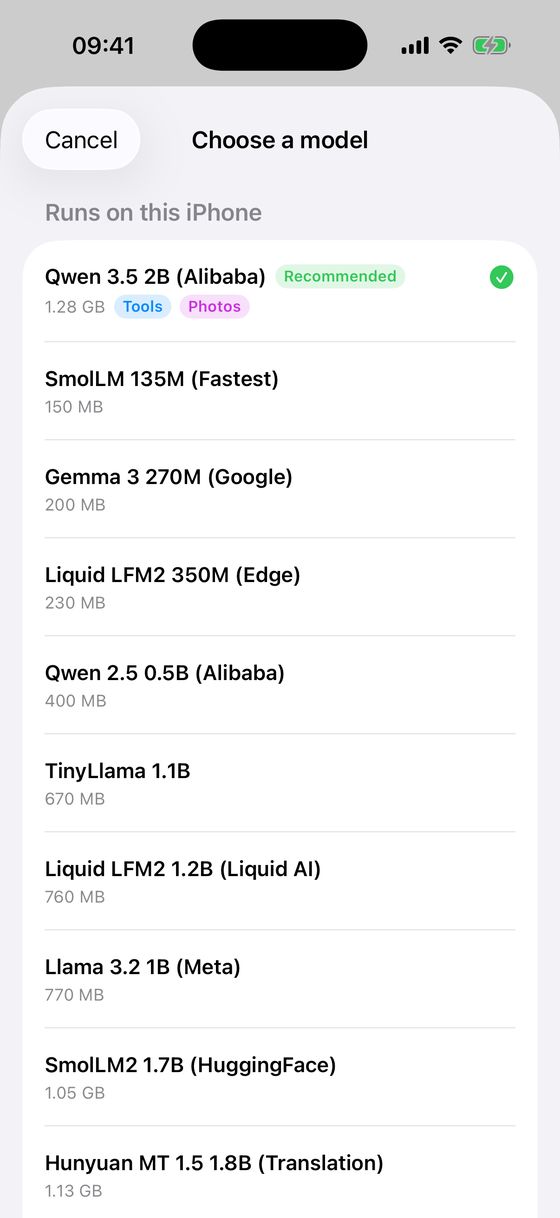
- On the phone: choose a model from the list. MyLLM shows only the models your phone can run, best first, and the download carries on in the background.
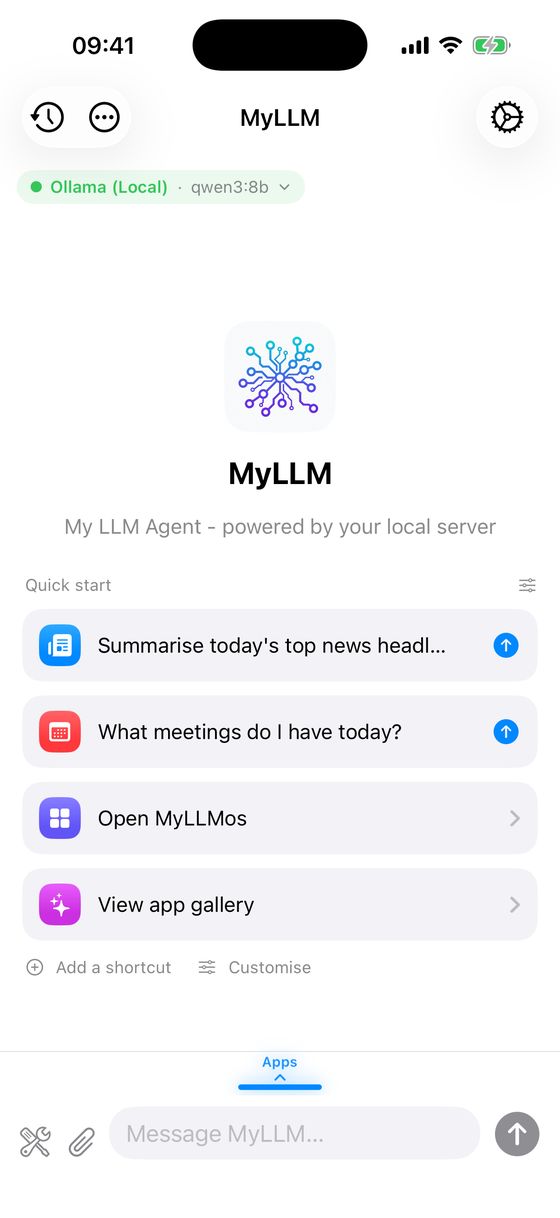
- Start chatting. Type in the message box at the bottom, or tap the mic to speak.
Where things are:
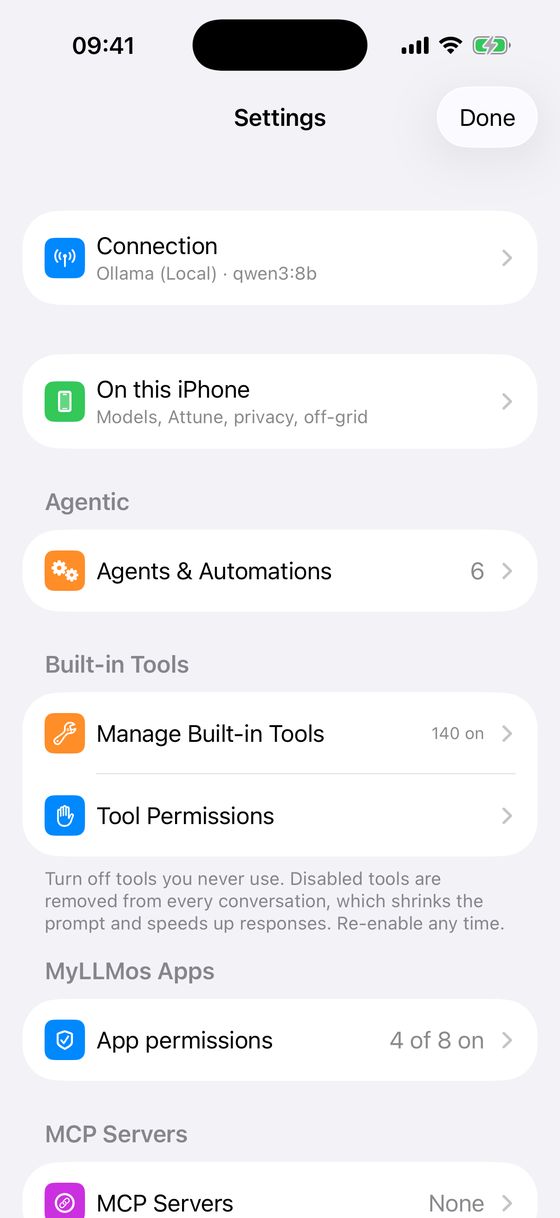
- Gear (top right): Settings.
- ••• (top left): Bots, Agent Mode, Plan Mode, Research Mode, Voice Input and Walking Mode.
- The model name at the top of a chat: switch models, or use Deep Think for the next message.
- The handle above the message box: swipe up for MyLLMos, your apps and files.
2. Choosing who answers
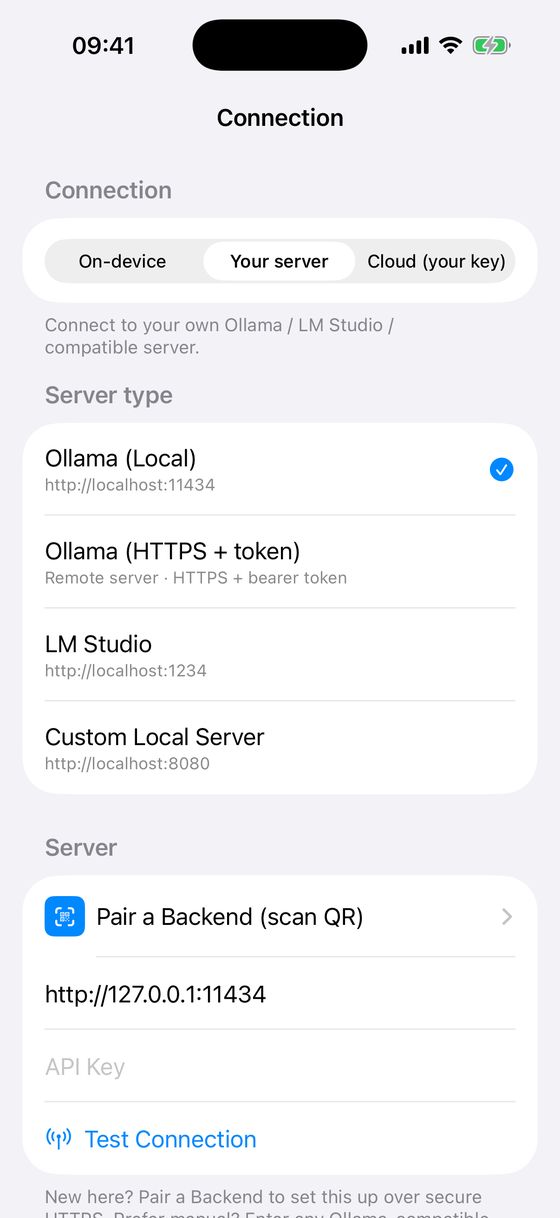
Settings → Connection chooses who answers your messages:
- The model on this phone. Private and works offline. See Models on your phone.
- Apple Intelligence, on iPhones that support it.
- Your own server: Ollama, LM Studio or any OpenAI-compatible server, on your home network or over HTTPS with a token.
- Your own API key for OpenAI, Anthropic, Gemini, OpenRouter, DeepSeek, Z.ai GLM, Moonshot Kimi, Alibaba Qwen, Mistral, xAI Grok or Groq.
Once more than one is set up, tap the model name at the top of a chat to switch between them without opening Settings.
Using your own computer
The easiest way is MyLLM Connect (next section). Or point MyLLM at a server yourself:
- Ollama: install it from ollama.com, run
ollama pull qwen3:8b, start it withOLLAMA_HOST=0.0.0.0 ollama serve, then enterhttp://YOUR_COMPUTER_IP:11434in MyLLM. - LM Studio: load a model, turn on Serve on Local Network in the Developer tab, start the server, then enter
http://YOUR_COMPUTER_IP:1234.
What your computer can run depends mostly on its memory (figures for the common Q4 size):
| Model size | Memory needed | Good for |
|---|---|---|
| 7–8B | ~6–8 GB | Fast everyday chat on a laptop |
| 13–14B | ~10–12 GB | Stronger reasoning |
| 30–34B | ~20–24 GB | High quality: a 24 GB GPU or 32 GB Mac |
| 70B | ~40–48 GB | Top tier: workstation GPU or 64 GB+ Mac |
On Apple Silicon, unified memory counts as GPU memory. Models of 8B and up use tools much more reliably than smaller ones.
3. MyLLM Connect
MyLLM Connect is our free, open-source (Apache-2.0) companion for Mac and Windows. It turns your computer into your phone's private AI server, so you can use bigger models than a phone can hold.
- Install a model runner on your computer, such as Ollama or LM Studio, and download a model.
- Download and open MyLLM Connect: macOS (signed, Apple Silicon and Intel) or Windows.
- Choose Share with my phone. A QR code appears.
- In MyLLM, open Settings → Connection → Pair a Backend (scan QR) and scan it.
Your messages go straight from your phone to your own computer over an encrypted link, at home or away, with no port forwarding, certificates or cloud in the middle. Only your paired phone can use it: without its access key, every request is refused.
More on the MyLLM website and in the source code on GitHub.
4. Models on your phone
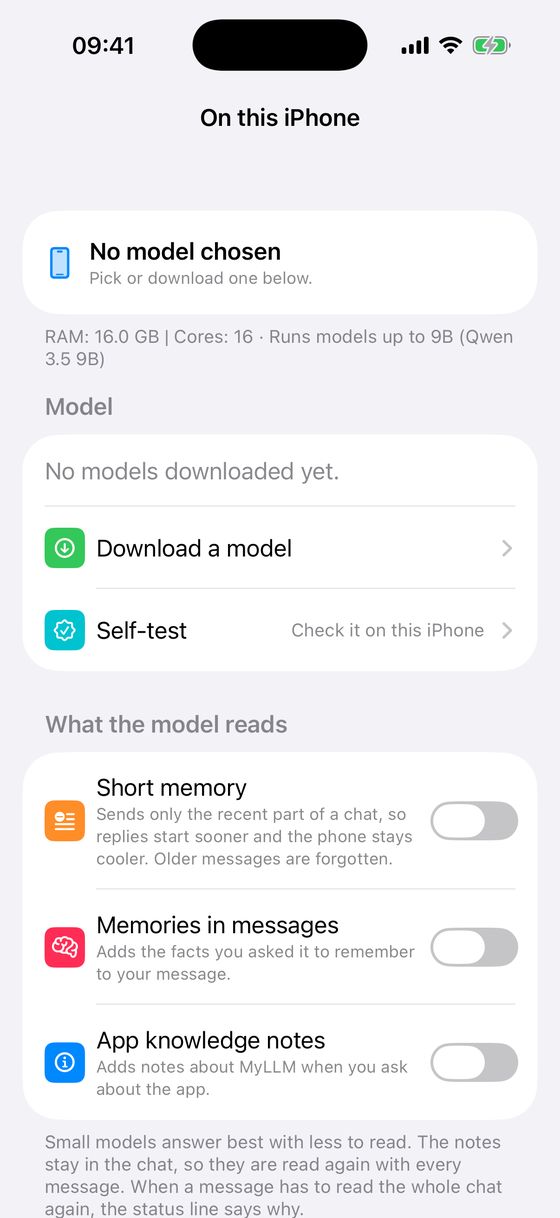
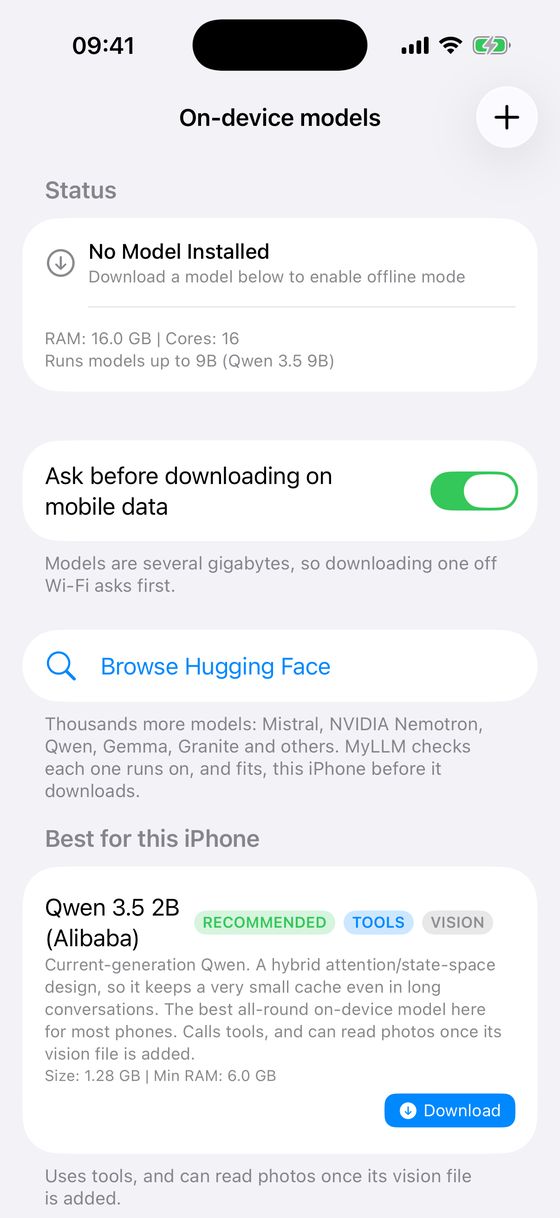
Settings → On this iPhone → Models lists what your phone can run, best first. Models marked TOOLS can use the weather, web search, date, calendar, reminders and shared files.
| Model | Download | Needs | Can do |
|---|---|---|---|
| Qwen 3.5 2B (recommended for most phones) | 1.3 GB | 6 GB phone | Tools, photos |
| MiniCPM5 2B | 1.6 GB | 4 GB phone | Tools |
| Gemma 4 E2B | 2.6 GB | 6 GB phone | Tools, photos |
| Granite 4.2 3B, Hermes 3 3B | 2.0–2.2 GB | 6 GB phone | Tools |
| Qwen 3.5 4B, Gemma 4 E4B | 2.7–4.2 GB | 8 GB phone | Tools, photos |
| Qwen 3.5 9B | 5.7 GB | 12 GB phone | Tools, photos |
- Photos: tap Add vision on Qwen 3.5 or Gemma 4 so it can read pictures, all on the phone.
- More models: browse Hugging Face from the Models screen, or add any GGUF file by link.
- Self-test (Settings → On this iPhone → Self-test) checks that the model works, in about a minute.
- What the model reads (Settings → On this iPhone → What the model reads): Short memory sends only the recent part of a chat, which is faster and cooler but forgets older messages. When a reply has to read the whole chat again, the status line says why.
- Attune (Settings → On this iPhone → Attune): describe how you like to be answered, for example "short and direct", and the phone's model leans that way. Thumbs under its replies refine it. It changes the manner, not the facts, and needs no training.
- Off-grid: with no signal the phone's model keeps chatting ("Off-grid" shows in the header). Web search and weather wait until you're back online. Settings → On this iPhone → Off-grid kit shows what's ready.
5. Chatting
- Attach photos, PDFs and text files with the paperclip. The assistant reads the whole document.
- Voice: tap the mic to speak, and long-press a reply → Read Aloud to hear it.
- Deep Think: tap the model name → Deep Think next message for a harder question.
- Agent Mode (••• menu): the assistant chains tools over many steps to finish a job, such as "research X and write a summary" or "tidy my shared files into folders".
- Plan Mode: it writes a numbered plan for you to approve before it starts.
- Research Mode searches more widely and saves its answers with their sources. Walking Mode is hands-free voice: talk, pause, and it answers aloud.
- History: swipe left on a chat to pin it, or swipe right to copy it.
6. Stop, undo and permissions
- The ■ button ends a reply at once, even in the middle of a tool. Anything a tool already finished stays done.
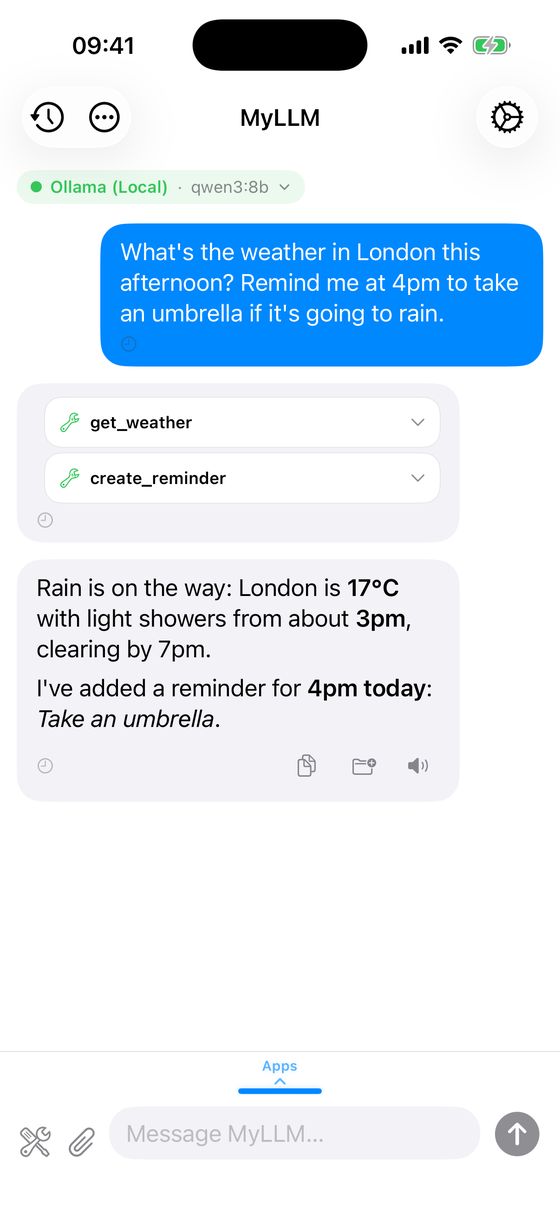
- Under each reply, a chip shows every tool that ran. Saves read as receipts ("Saved · notes/todo.md", "Remembered"), and failures show in red.
- Deleting files, sending email, adding calendar events or reminders, running a Shortcut, opening a link and saving a skill ask for your OK once per chat. Settings → Built-in Tools → Tool Permissions sets any tool to Auto, Ask or Deny.
- Undo: shared files keep their last five versions (Shell app:
history, thenrevert). You can delete memories in Settings → Memory.
7. Bots
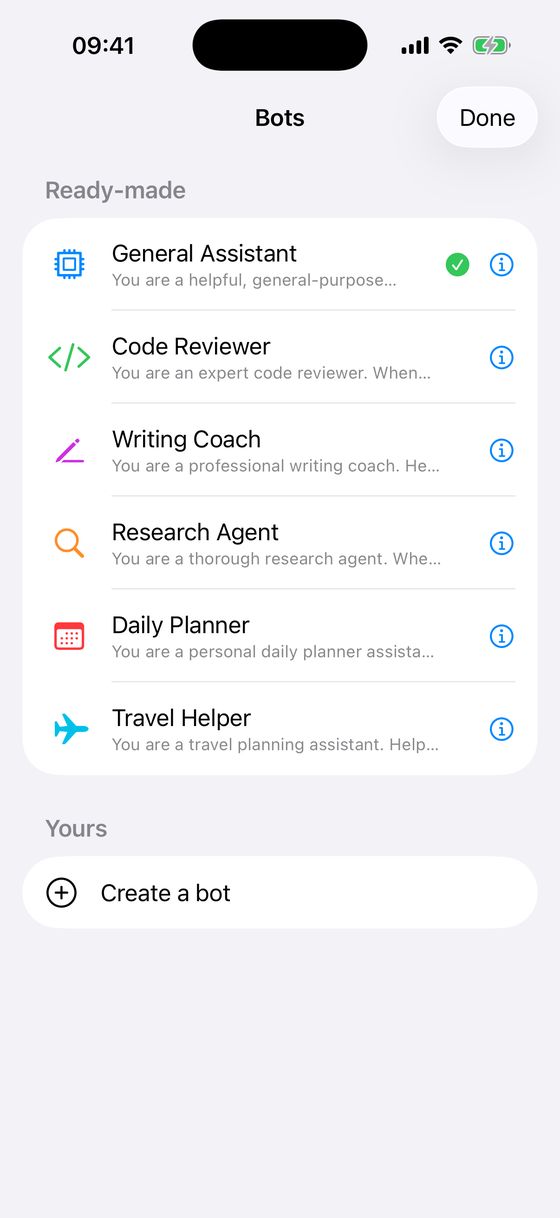
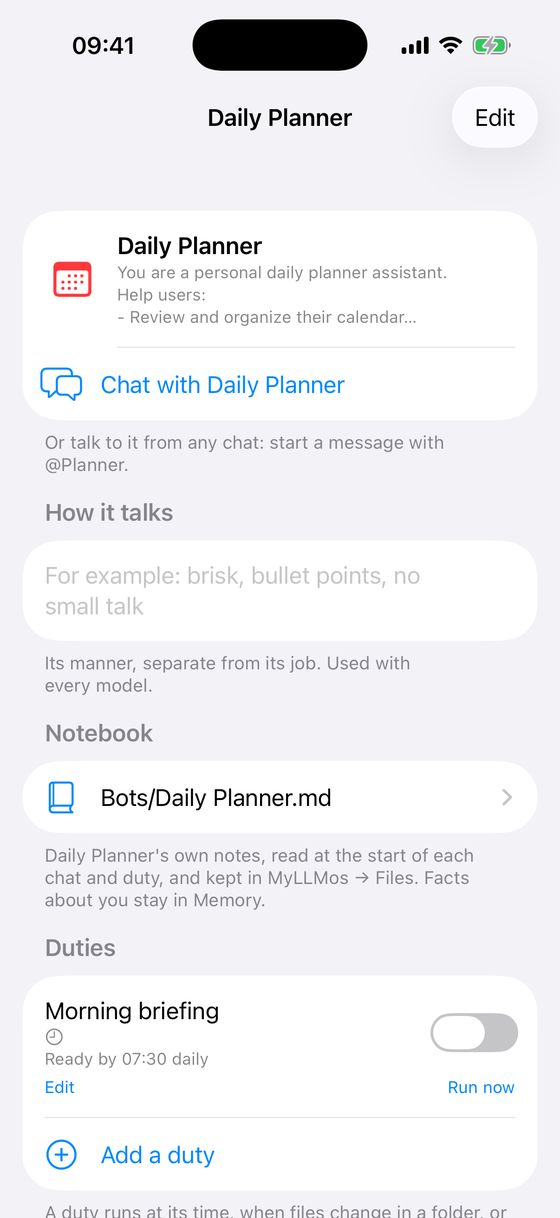
Bots are assistants with their own job. Open them from ••• → Bots.
- Tap a bot to chat with it. Its ⓘ button opens its page, where you can change its icon, name, job and how it talks, and read its notebook (
Bots/<Name>.mdin MyLLMos → Files). - Start a message with @Name to hand the chat to that bot, or type @ to list them. @myllm returns you to the default assistant.
- Duties are jobs a bot does by itself: at a time, when files in a folder change, or when a system in your Command Center needs attention. A new chat opens with a While you were away card listing what each bot did.
- Duties on the phone's own model run when the app is idle or overnight on the charger. They need Settings → On this iPhone → Learn in quiet moments switched on.
8. Apps (MyLLMos)
- Ask for an app, such as "make me a habit tracker", a quiz or a game. It appears as a card you can open and save.
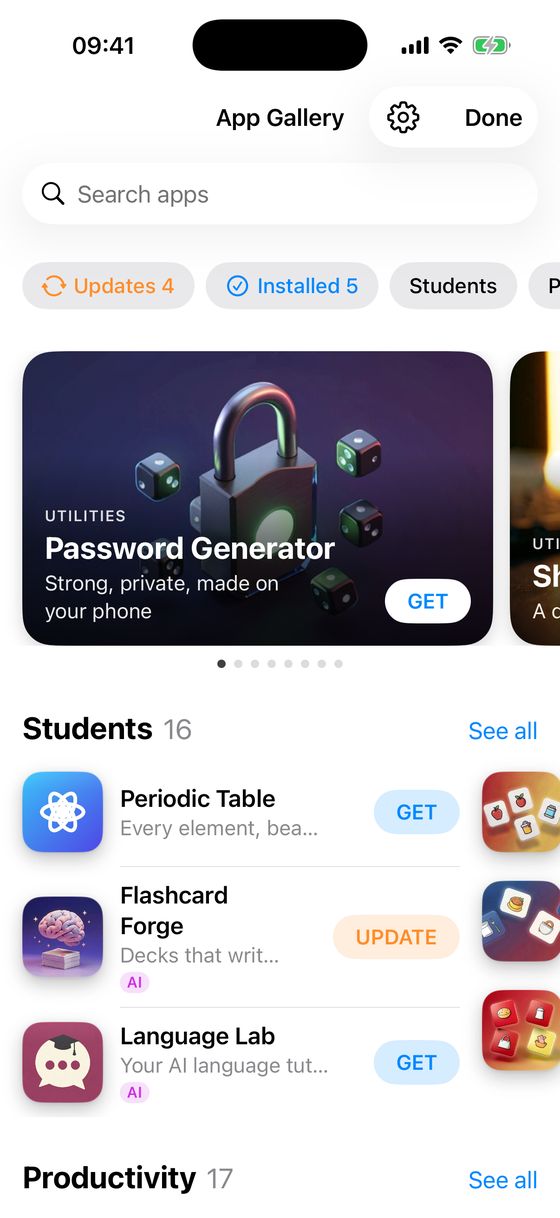
- MyLLMos: swipe up from the handle above the message box to see your saved apps and the shared Files.
- App Gallery: 128 ready-made apps by category, with an Updates chip that updates them all in one go. Apps keep their data across updates. You can also browse it on the web at opticell-limited.com/myllm-os.
- Changing an app: ask the assistant. It edits the app, checks it for errors out of sight, and fixes them before saying it's done. That needs your own server or a cloud model. With the phone's own model, use the Shell app instead: its
apps/folder holds your apps as files, edited a few lines at a time. Edit in Chat offers both. - From other AI chats: share code or text from any app to MyLLM and choose Save as App or Save to Documents. The send-to-myllm skill teaches other AI tools to package things for this.
- Pinned apps also appear on the chat's start screen. On iPhones with LiDAR, Room Scanner turns a room into a floor plan.
9. Tools, skills and MCP
MyLLM has more than 45 built-in tools, including web search, weather, files, calendar, reminders, contacts, photos, maps, email and code. Only the tools a message needs are sent with it. To see or switch them off, open Settings → Manage Built-in Tools.
Add more tools
The tool marketplace (opticell-limited.com/myllm-wiki, also mirrored here) has 80+ more tools, installed with one tap. Each install shows you what the tool does and whether it uses the internet before anything is added. You can also paste a tool's JSON in Settings → About → Tools Available → ⋯ → Import from JSON.
Skills
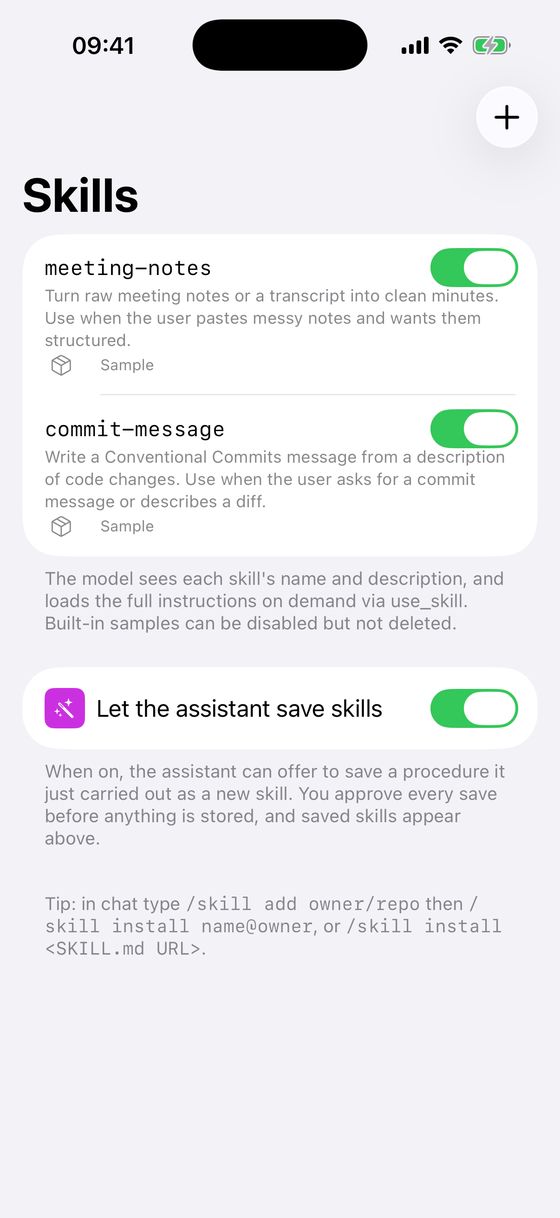
Skills are reusable instructions in the open Agent Skills format: the model loads a skill when a task needs it. Browse them in MyLLMos → Skills, on the catalogue, or in chat with /skill add teamdzx/myllm-skills. You can also ask the assistant to research a topic and write you a new skill.
MCP servers
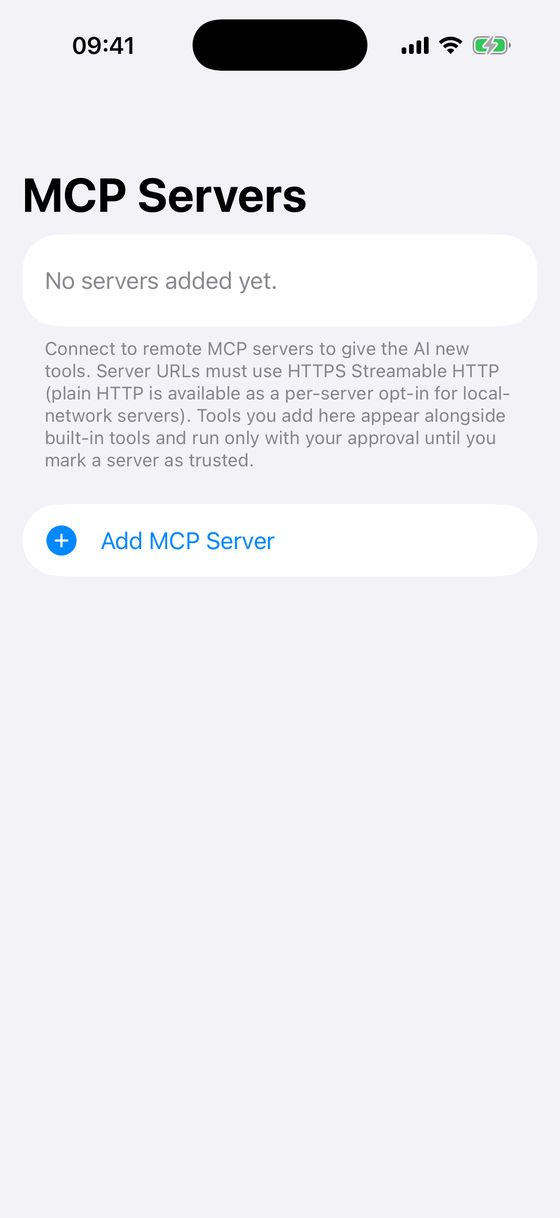
Settings → MCP Servers connects outside tool servers (Model Context Protocol) over HTTPS with a token. Their tools join the assistant's own. On each server's page you can switch tools off. Tools marked Writes ask for your OK before their first use in a chat. MyLLM uses the Streamable HTTP transport; stdio-only servers need a bridge such as mcp-proxy. See the recommended servers.
10. Memory and privacy
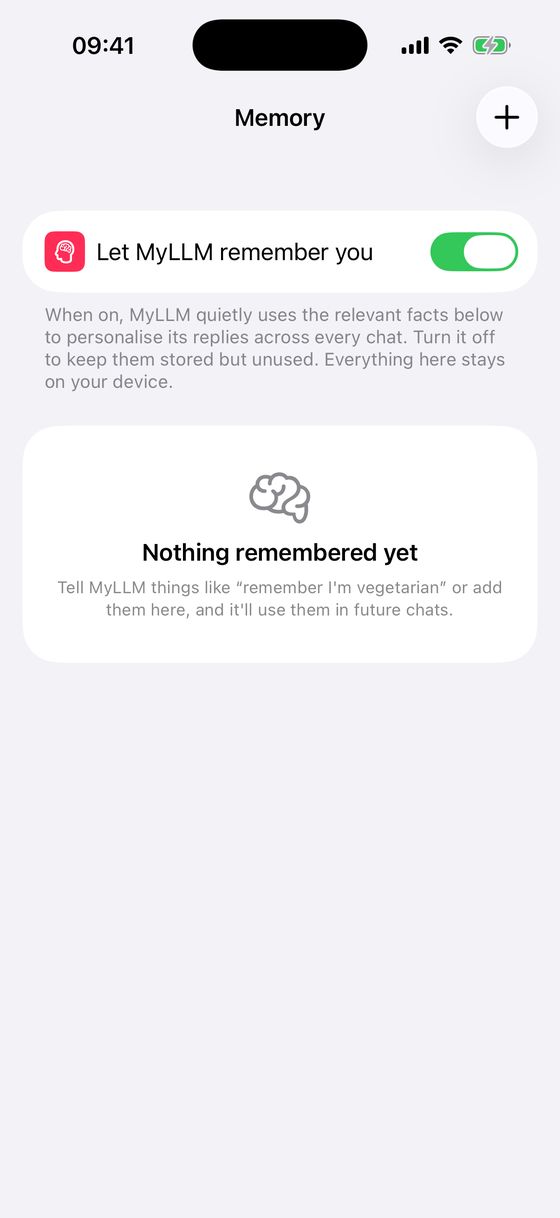
- Memory (Settings → Memory): facts MyLLM keeps about you, stored on the device, which you can view, edit and delete. They're used only when a message is about you. Learn in quiet moments lets the phone's model pick facts out of chats while the phone is idle or charging.
- No account, no telemetry, no ads. Chats, memory and files are stored on the device.
- Replies from the phone's model show a shield. Settings → On this iPhone → On-device ledger lists every reply and whether any tool went online for it.
- With your own server or an API key, messages go only to that server or provider, never to us.
- Ask your photos (Settings → On this iPhone) indexes your photo library on the phone, so you can ask "find my screenshot about…".
11. Automations, Siri and widgets
- Automations: Settings → Agents & Automations holds jobs that run on a schedule or when files change.
- Siri and Shortcuts: Ask MyLLM, Summarise on This Phone, New Chat, Generate Image, Check Email, Voice Input, Web Search, Brief Me, Summarise URL and Open Saved App. Say "Ask MyLLM" to Siri, or use them in your own shortcuts and on the Action button.
- Share sheet: from Safari or any app, share text, a link or a photo to MyLLM. A shared page can be summarised privately on the phone.
- Widgets: a Home Screen widget shows the last answer. Control Centre buttons start a new chat, voice input or an email check. A Live Activity follows a long reply from a server.
- Email: Settings → Email connects an inbox over IMAP so the assistant can check and summarise it. Gmail and iCloud need an app-specific password.
12. Image and video generation
MyLLM creates images (FLUX 3 Image Klein or FLUX.2 Klein, whichever your server has) and video (Wan 2.2 TI2V-5B) on your own ComfyUI server, with no cloud and no per-image fees. New to this? Run your own image server lists exactly what to install.
- Open Settings → Image & Video Generation.
- Enter your ComfyUI address and, if it needs one, the token (kept in the iOS Keychain).
- Tap Test ComfyUI. It says which image model it found, or which files are missing. Then generate from the Create screen.
A GPU with 16–24 GB, or an Apple Silicon Mac with 32 GB or more, is recommended; 8 GB works, but slowly. To use your own pipeline, export a workflow from ComfyUI in API format and paste it into Custom workflow JSON…. There's a separate slot for images and for video. The catalogue page has the full hardware table and the node IDs the on-screen controls drive.
13. Price
Free for 7 days with everything included. Then £0.99 a month, £9.99 a year, or £29.99 once for life (UK prices). There are no ads and no tiers: every option unlocks everything. Settings → MyLLM Full Version shows what you have and restores a past purchase.
14. Android
MyLLM for Android (Google Play) covers the same core: chat, models on the phone, your own server or API key, tools and documents. This guide follows the iPhone app. Some screens are arranged differently on Android, and iPhone-only features such as Siri, widgets and room scanning aren't there.
15. Troubleshooting
- MyLLM can't reach my server.
- Make sure the phone and computer are on the same network, and that Ollama was started with
OLLAMA_HOST=0.0.0.0(LM Studio: Serve on Local Network). Use the computer's local IP address, notlocalhost. Away from home, use MyLLM Connect, or HTTPS with a token. - The assistant forgets earlier messages.
- On the phone's model, check whether Short memory is on (Settings → On this iPhone → What the model reads). On your own server, raise the context window (see Choosing who answers) if the model and computer allow it.
- It says it will use a tool, then doesn't.
- Smaller models use tools less reliably. On the phone, pick a model marked TOOLS. On a server, 8B or larger works best. Agent Mode lets the assistant carry on over more steps.
- A model won't download or load.
- The Models list only offers what your phone's memory can hold. Free some storage, keep MyLLM open on Wi-Fi for the first download, then run Self-test.
- Is my data sent anywhere?
- With the phone's model, nothing leaves the device unless a tool goes online, and the ledger shows when one did. With a server or API key, messages go only there.